# Editing Fields for Multiple Documents
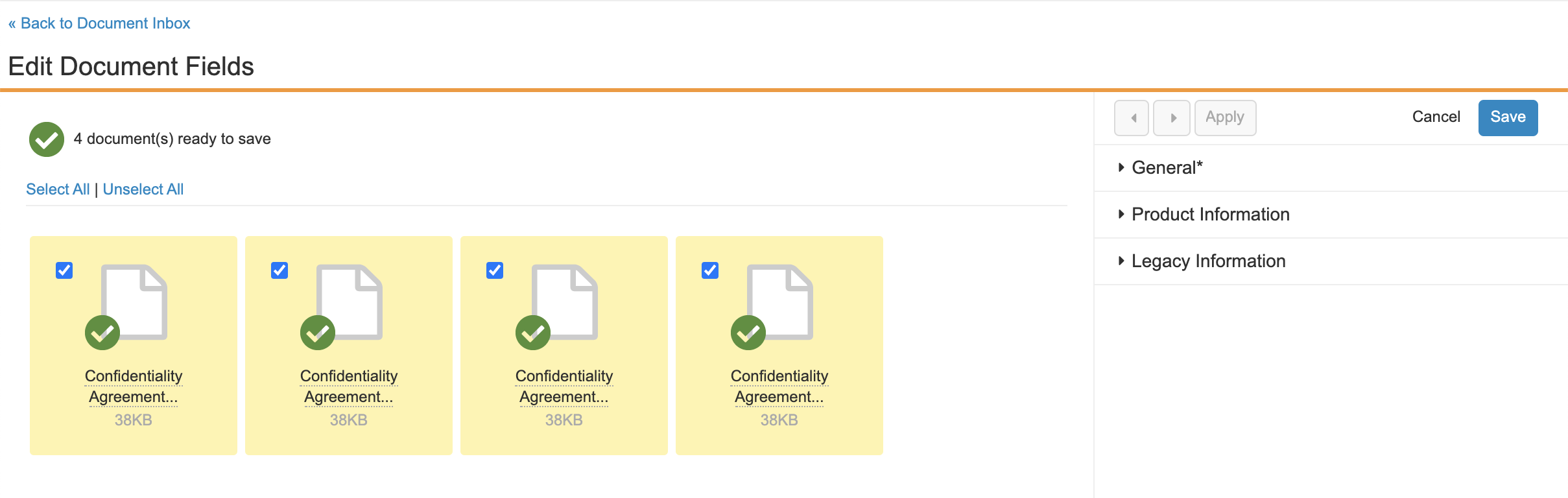
Sometimes, you may need to select a document type and populate document fields for multiple documents at once. There are two situations in which this occurs, which are different from bulk document actions available to Admin users. In the first, you're creating new documents and have chosen to upload multiple files and classify the documents immediately. In the second, you've selected multiple unclassified documents from the **Document Inbox** view and chosen to classify them together. In either situation, you'll see this page:
## How to Populate Fields {#configuringproperties}
Each selected document appears in the left panel. To add field values, select one or more of the documents using the checkboxes and enter field values in the right panel. When you're done with the fields for the selected documents, click **Apply**. Some fields are not editable while multiple documents are selected. Note that the _Version_ field does not appear and is not editable when classifying documents.
For example, the _Product_ field should be the same for all documents, but the _Country_ field should be different. Select all documents, choose a product, and click **Apply**. Then, select an individual document, choose a country, and click **Apply** again. You can also click the arrow buttons to apply your changes and select the next or previous document. Repeat this step for each field and document. When all required fields are filled in on all documents, click **Save**.
Note that some fields are automatically populated.
## How to Remove Documents
When you hover over a document in the left panel, a red **X** icon appears. Click this icon to remove the document from the current process. If you're currently uploading files, removing the document causes Vault to delete it. If you're classifying multiple unclassified documents, the document's type returns to _Unclassified_, but Vault does not delete it.
## Document Status Indicator
An icon appears on each document to indicate the current status of that document and another icon appears at the top of the panel to indicate the overall status.
The possible statuses are:
* Upload in progress
* Required fields missing
* Ready to save
* Upload failed