# About the Searchable Object Fields Page
By default, you can search and filter documents according to the _Name_ values of records selected in object reference fields. In addition, the _Searchable Object Fields_ page (**Admin > Configuration > Document Setup > Searchable Objects Fields**) allows you to configure additional fields from those referenced objects for Vault to include when searching and filtering documents. For example, you could configure the _Abbreviation_ and _Generic Name_ fields from the _Product_ object, which allows documents to be searched and filtered on those fields in addition to the _Product Name,_ which is always searchable.
When you add or remove additional fields, they are placed in an uncommitted state, which means they are not immediately made active in your configuration. This behavior gives you the opportunity to review your changes first and make further changes as needed. When ready, you can commit your changes and make your configuration active by selecting **Actions > Commit Changes**. You can also cancel your changes by selecting **Actions > Revert Changes.**
Admins can also specify which object fields are searchable and filterable during creation of an object-type document field.
## How to Add Fields
To make additional object fields available for searching and filtering documents:
1. Select **Actions > Modify Fields**.
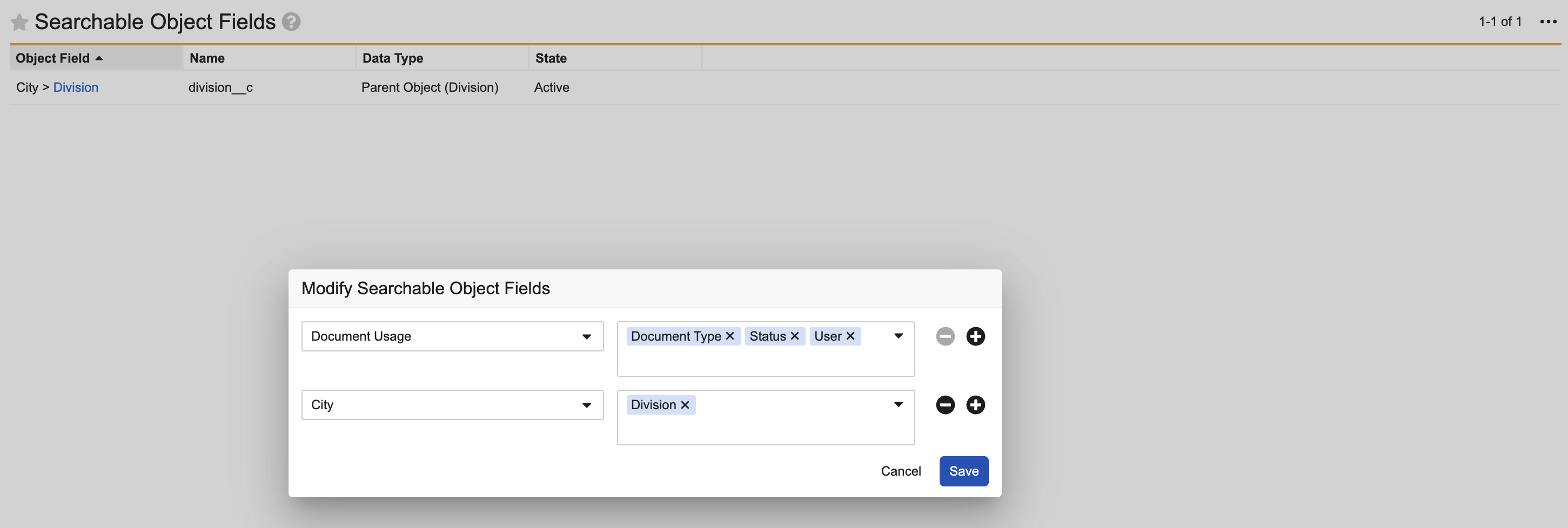
2. In the **Modify Searchable Object Fields** dialog, select an object from the left picklist. If the object contains existing committed or uncommitted searchable fields, they are displayed in the dialog.
3. Select an object field available on the selected object from the right picklist.
4. Optional: Use the **plus (+)** button to add another object for modifying searchable object fields or the **minus (-)** button to remove an object from the dialog.
5. Click **Save**. Your added searchable object fields appear on the _Searchable Object Fields_ page in the _Uncommitted Add_ status.
6. Click **Actions > Commit Changes**.
7. Vault displays a message identifying the number of documents that require indexing due to your committed changes. The fields will not become searchable until the indexing is complete. Click **Continue**.
Your added searchable object fields are now active and available for use.
 ## How to Remove Fields
To remove an object field from document searching and filtering:
1. Select **Actions > Modify Fields**.
2. In the **Modify Searchable Object Fields** dialog, select an object with searchable object fields from the left picklist.
3. Click the **X** icon that appears on the field label in the right picklist.
4. Click **Save**. Your removed searchable object fields appear on the _Searchable Object Fields_ page in the _Uncommitted Removal_ status.
5. Click **Actions > Commit Changes**.
6. Vault displays a message identifying the number of documents that require indexing due to your committed changes. Click **Continue**.
Your removed searchable object fields are now deleted from the _Searchable Object Fields_ page and they can no longer be searched.
## How to Remove Fields
To remove an object field from document searching and filtering:
1. Select **Actions > Modify Fields**.
2. In the **Modify Searchable Object Fields** dialog, select an object with searchable object fields from the left picklist.
3. Click the **X** icon that appears on the field label in the right picklist.
4. Click **Save**. Your removed searchable object fields appear on the _Searchable Object Fields_ page in the _Uncommitted Removal_ status.
5. Click **Actions > Commit Changes**.
6. Vault displays a message identifying the number of documents that require indexing due to your committed changes. Click **Continue**.
Your removed searchable object fields are now deleted from the _Searchable Object Fields_ page and they can no longer be searched.
 ### Custom Views
If a searchable object field is a filter within a custom view, and then you remove the field from the **Searchable Object Fields** page, the custom view will no longer include that filter. While the view will still work, users will see the filter crossed out and filter values are no longer applied.
## Reverting Changes
You can cancel changes made in the _Modify Searchable Object Fields_ dialog before they are committed. This action is helpful if you make a mistake in your configuration and need to make changes before activating or removing searchable object fields.
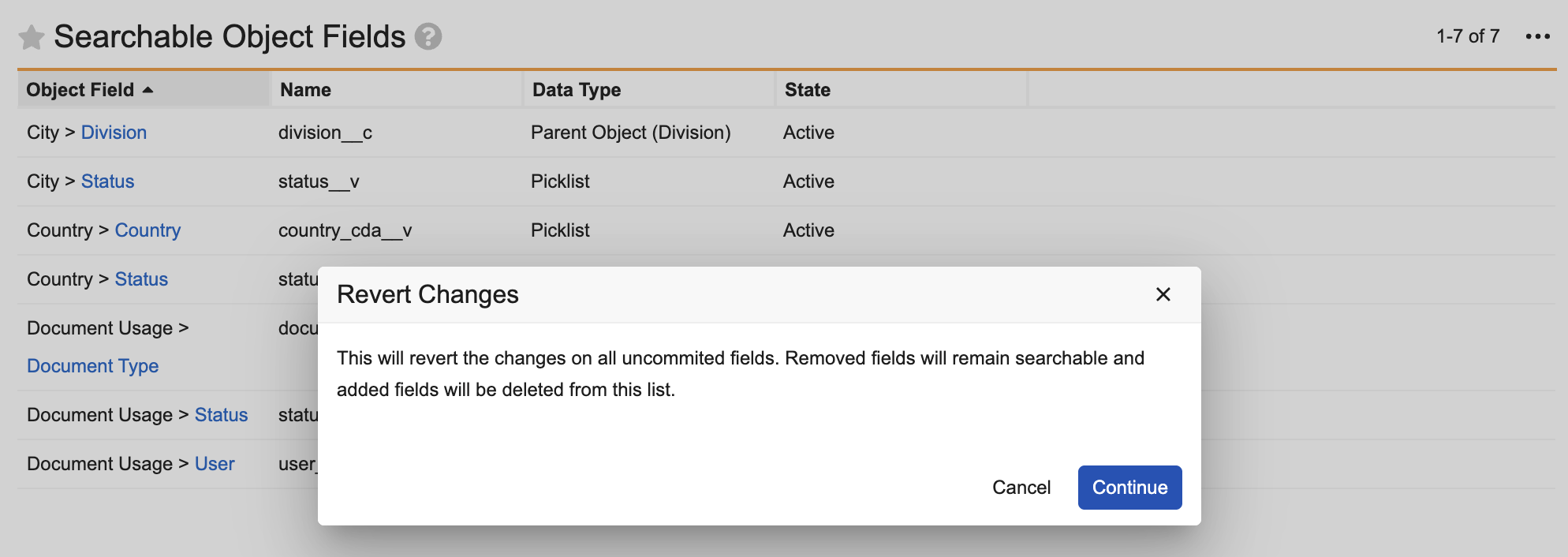
To revert changes, select **Actions > Revert Changes**. Vault displays a dialog stating the revert action will apply to all uncommitted fields. _Uncommitted Removal_ fields will remain searchable, and _Uncommitted Add_ fields are deleted from the _Searchable Object Fields_ list. Click **Continue** in the dialog to complete the action.
## Reindexing
Any time you make a change to searchable object fields (adding or removing a field), Vault reindexes documents.
## Searchable Object Field Limits
Vault has a limit of 50 custom searchable object fields. If you attempt to make additional fields searchable, you'll see a prompt to remove some fields first.
### Custom Views
If a searchable object field is a filter within a custom view, and then you remove the field from the **Searchable Object Fields** page, the custom view will no longer include that filter. While the view will still work, users will see the filter crossed out and filter values are no longer applied.
## Reverting Changes
You can cancel changes made in the _Modify Searchable Object Fields_ dialog before they are committed. This action is helpful if you make a mistake in your configuration and need to make changes before activating or removing searchable object fields.
To revert changes, select **Actions > Revert Changes**. Vault displays a dialog stating the revert action will apply to all uncommitted fields. _Uncommitted Removal_ fields will remain searchable, and _Uncommitted Add_ fields are deleted from the _Searchable Object Fields_ list. Click **Continue** in the dialog to complete the action.
## Reindexing
Any time you make a change to searchable object fields (adding or removing a field), Vault reindexes documents.
## Searchable Object Field Limits
Vault has a limit of 50 custom searchable object fields. If you attempt to make additional fields searchable, you'll see a prompt to remove some fields first.