# Managing Object State Types

Object state types enable Admins to identify specific states across object lifecycles, or even across all object lifecycles in a Vault, that should have common behaviors.


<div class="note-border alert-info">
  <div class="alert alert-info" role="alert">
    <div><i class="far fa-info-circle"></i></div>
    <div class="alert-text">
      <p><strong>Note</strong>:  This article explains how to create custom object state types. For help associating object state types to object lifecycle states, see <a href="/en/gr/30683/">Configuring Object Lifecycles</a>.</p>
    </div>
  </div>
</div>


## About Object State Types

By default, each object lifecycle initially has two state types associated with it: _Initial_ and _Complete_. You can create custom object state types in object lifecycle configuration.

For example, an organization might create the custom object state type "Approved", defined by the Admin with a scope of **Available to all lifecycles**. This means that the "Approved" state type is available to add to any object lifecycle in the Vault. An Admin is then able to create a state type to lifecycle state association for "Approved" with any object lifecycle.

Other Vault functionality, such as distribution of data and reporting, can then leverage the "Approved" object state type, and would therefore apply to every object record in an associated state across multiple object lifecycles. Furthermore, the state types are leveraged by many cross-Vault connections. In QMS-Regulatory, for example, state types are used as a trigger to indicate when data should be transferred between Vaults without requiring extensive re-configuration of the existing lifecycles.

Within an object lifecycle, a state could be associated with multiple state types. For example, the "Approved" state in the "Deviation Approval Lifecycle" could be associated with both the "Steady State" state type, as well as the more specific "Deviation-Approved" state type. However, within an object lifecycle, only one state could be associated with a specific state type, for example, only one state could be associated to the state type "Complete".

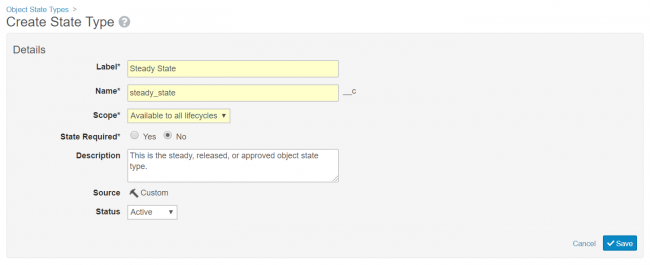
## How to Create Object State Types {#how-to-create-object-state-types}

To create a new object state type:

  1. Navigate to **Admin** > **Configuration** > **Object State Types**.
  2. Click **Create**.
  3. Enter a **Label** and **Name**.
  4. Select a **Scope**. Selecting **Applies to all lifecycles** ensures this state type appears in every object lifecycle, including pre-existing object lifecycles. Select **Available to all lifecycles** to make this state type appear as an option when creating a new state type association. Select **Specific lifecycle** if this state type only applies to a single object lifecycle.
  5. Choose whether the state type is required or not. A required state type must have an associated state in all lifecycles in which it appears. By default, Vault associates the _Initial_ state with the required state type.
  6. Optional: Enter a **Description**. This value only appears in the lifecycle configuration pages.
  7. Select a **Status** from the drop-down.
  8. Optional: If you selected the Specific lifecycle scope, you must select an existing object lifecycle from the **Lifecycle** drop-down.
  9. Click **Save**.

<a href="https://platform.veevavault.help/assets/images/object-state-types-19r22.png" data-lightbox="object-state-types-19r22.png" data-title="" data-alt="">
  <img class="docimage" src="https://platform.veevavault.help/assets/images/object-state-types-19r22.png" alt="" style="width: 55%;"  />
</a>

## About Active and Inactive Object State Types

Object state types have a status flag to indicate Active or Inactive.  Only Active state types are available for making a lifecycle state and state type association.

## Related Permissions

You must have the following permissions to configure object state types:

<table class="wbord">
  <tr>
    <td style="width: 86px;">
      <p>
        <strong>Type</strong>
      </p>
    </td>
    <td style="width: 134px;">
      <p>
        <strong>Permission</strong>
      </p>
    </td>
    <td style="width: 532.667px;">
      <p>
        <strong>Description</strong>
      </p>
    </td>
  </tr>
  <tr>
    <td style="width: 86px;">
      <p>
        Security Profile
      </p>
    </td>
    <td style="width: 134px;">
      <p>
        Admin: Object Lifecycles
      </p>
    </td>
    <td style="width: 532.667px;">
      <p>
        To create and modify object state types, you must have a security profile which grants <em>Create</em> and <em>Edit</em> permissions for Object Lifecycles.
      </p>
    </td>
  </tr>
</table>

 [1]: /wordpress/wp-content/uploads/Object_State_Types_19R22.png
 [2]: /wordpress/30683
