# Configuring Scientific Communication Platforms

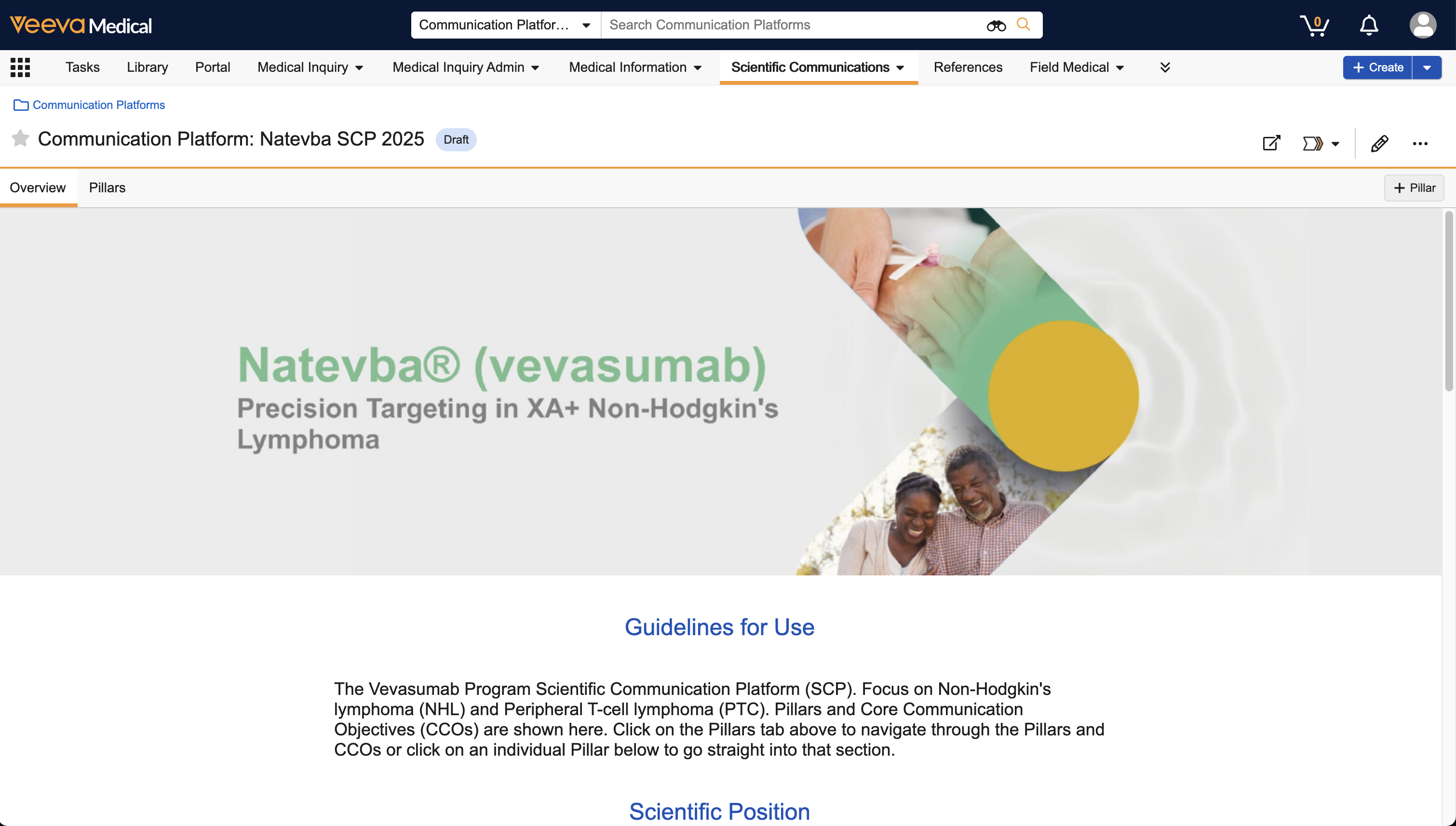
Scientific Communication Platforms define the scientific position, narrative, objectives, and core medical messages for products, therapeutic areas, indications, or a combination thereof. These objectives and messages serve as the foundation for future medical communication activities. Stakeholders leverage these communications platforms to source their messaging and data points used to substantiate medical content.

You can link these objectives and messages to content in MedComms using _Scientific Statement_ linking for tracking and reporting. You can also link _Statement Assets_ to _Scientific Statements_, supporting your objectives and messages with non-text assets.

<a href="https://platform.veevavault.help/assets/images/Overview_Tab_SCP_UI_25r24.png" data-lightbox="Overview_Tab_SCP_UI_25r24.png" data-title="" data-alt="Communication Platform user interface">
  <img class="docimage" src="https://platform.veevavault.help/assets/images/Overview_Tab_SCP_UI_25r24.png" alt="Communication Platform user interface" style="width: 60%;"  />
</a>

## Scientific Communication Platforms Objects

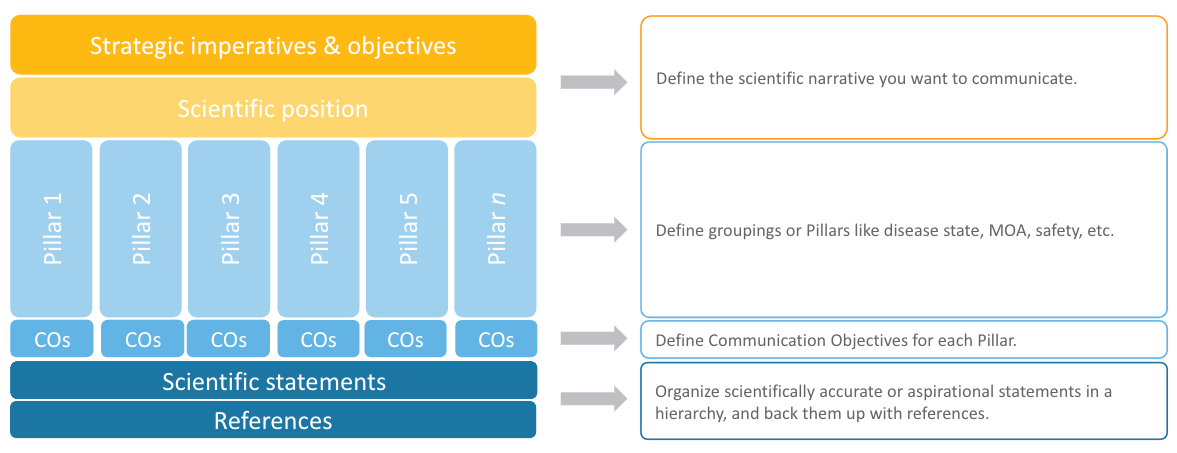
MedComms offers the following objects to manage Scientific Communication Platforms data:

  * The _Communication Platform_ object defines the scientific narrative to be used in future medical communications.
  * The _Pillar_ object is a child of the _Communication Platform_ object that allows you to organize _Communication Objectives_ and statements within a Scientific Communication Platform into themes that support the overall communication strategy. 
  * The _Communication Objective_ object allows you to describe any desired strategic outcome. 
  * The _Scientific Statement_ object, with the _Primary Statement_, _Secondary Statement_, and _Aspirational Statement_ object types, stores scientific statements and links to scientific literature to be used as references.
  * The _Statement Assets_ object allows users to relate visual, non-text assets such as images, charts, tables, and more to _Scientific Statements_.
<a href="https://platform.veevavault.help/assets/images/Scientific_Communication_Platforms_Objects_24R2.png" data-lightbox="Scientific_Communication_Platforms_Objects_24R2.png" data-title="" data-alt="Scientific Communication Platforms">
  <img class="docimage" src="https://platform.veevavault.help/assets/images/Scientific_Communication_Platforms_Objects_24R2.png" alt="Scientific Communication Platforms" style="width: 60%;"  />
</a>

## Configuring Scientific Communication Platforms

Before using the Scientific Communication Platforms functionality, you must perform the following configuration tasks in your Vault.

 
<div class="note-border alert-info">
  <div class="alert alert-info" role="alert">
    <div><i class="far fa-info-circle"></i></div>
    <div class="alert-text">
      <p><strong>Note</strong>: You must enable <a href="/en/gr/602335/#enable-suggested">Suggest Links</a> to link Scientific Statements to documents.</p>
    </div>
  </div>
</div>


### Enabling Communication Platforms

To enable the Communication Platform user interface, you must perform the following configuration tasks:

  * Navigate to **Admin > Settings > Application Settings** and, under _MedComms Settings_, select the **Enable Communication Platform UI** checkbox.
  * Activate the following fields on the **Communication Platform** object and add them to the page layout:
    * _Hero Image_
    * _Primary Product Family_
    * _Guidelines for Use_
  * Activate the following fields on the **Pillar** object and add them to the page layout:
    * _Hero Image_
    * _Primary Product Family_
    * _Order_
  * Activate the _Order_ field on the **Scientific Statement** object, applicable object types, and add it to the relevant page layouts.


### Configuring Tabs

We recommend that you create <a href="/en/gr/23516/">custom tabs</a> for the **Communication Platform** and **Communication Objective** objects. Then, you should create a <a href="/en/gr/542174/">tab collection</a> with the two new tabs and the standard **Scientific Statements** tab. We recommend that you name the tab collection **Scientific Communications**.

### Configuring User Permissions

We also recommend adding the following permissions to the _MedComms Full User Actions_ <a href="/en/gr/23647/#how_to_edit_permission_sets">permission set</a>:

  *  _Object: Communication Objective: Medical Objective: Read, Create, Edit, Delete_
  *  _Object: Communication Objective: Commercial Objective: Read, Create, Edit, Delete_
  *  _Object: Communication Platform: Read, Create, Edit, Delete_
  *  _Object: Scientific Statement: Primary Statement: Read, Create, Edit, Delete_
  *  _Object: Scientific Statement: Secondary Statement: Read, Create, Edit, Delete_
  *  _Object: Scientific Statement: Scientific Statement: Read, Create, Edit, Delete_
  *  _Object: Scientific Statement: Aspirational Statement: Read, Create, Edit, Delete_

### Configuring Object Lifecycles & Workflows

You can also <a href="/en/gr/59885/">add entry criteria and entry and user actions</a> to the standard **Communication Objective**, **Communication Platform**, and **Scientific Statement** lifecycles to better manage the review and approval of object records within the messaging hierarchy. For example, if approving a _Communication Objective_ automatically approves related _Primary Statements_, you can add an entry action that updates the inbound _Primary Statements_ to _Approved_ in the _Communication Objective_ lifecycle.

## Related Permissions

You can complete all steps in this article with the standard Business Admin, System Admin, or Vault Owner profile. If your vault uses custom security profiles, your profile must grant the following <a href="/en/gr/22824/">permissions</a>:

| Type | Permission Label | Controls |
|---|---|---|
| Security Profile | Objects: Communication Platform: Read, Create, Edit, Delete | Ability to view, edit, and manage _Communication Platform_ object records |
| Security Profile | Admin: Application: Edit | Grants edit permission to the **Settings > Application Settings** page |
| Security Profile | Admin: Configuration: Object Lifecycles: Read, Edit | Ability to view and edit existing object lifecycles |
| Security Profile | Admin: Tabs: Create | Ability to create a new tab |
| Security Profile | Admin: Tab Collections: Create, Edit | Ability to create and edit tab collections |
