 ## Viewing the Document Readiness Panel
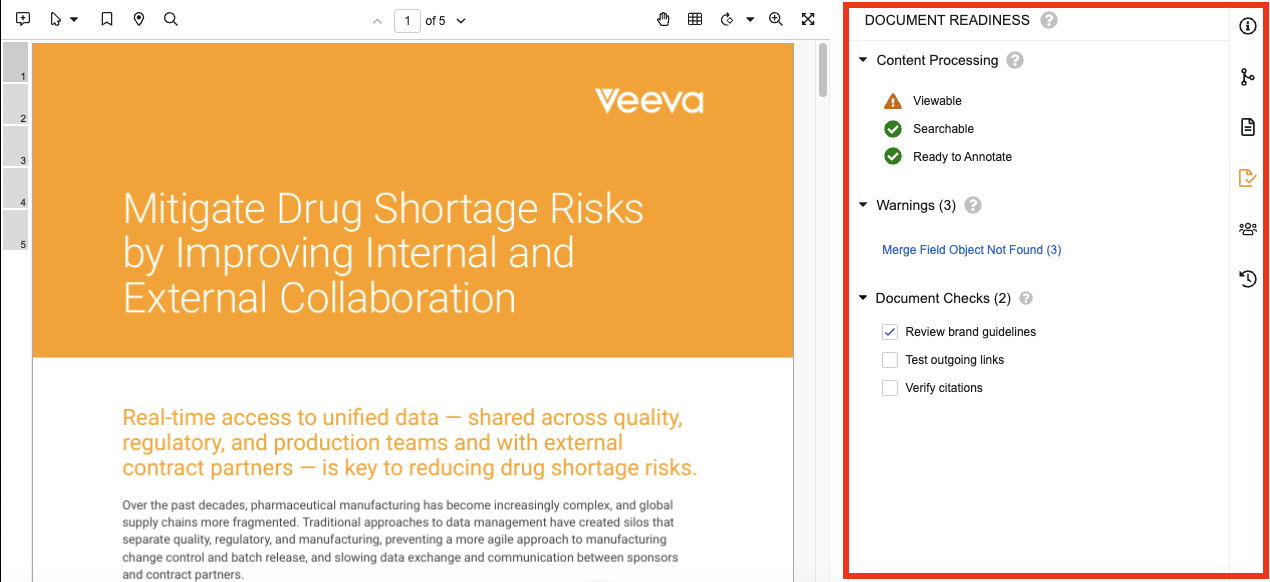
To open the Document Readiness panel, click **Document Readiness** () on the Doc Info pane to the right of the document viewer. The panel displays the [Content Processing][1], [Warnings][2], and [Document Checks][4] sections, if [configured by an Admin](/en/lr/8599601/#configure-document-checks).
The panel is displayed to users with the appropriate [permissions][3]. The panel is not displayed for previous document versions, documents in a steady state, or documents that do not undergo content processing.
## Content Processing Status Information {#content-processing-status}
The Content Processing section in the Document Readiness panel displays status indicators for the following activity categories:
* **Viewable**: This category includes all activities involved in generating a rendition that is displayed in the document viewer. This includes post-processing steps such as PDF/A and PDF standardization.
* **Searchable**: This category includes all activities involved in indexing document content and making the content searchable by users.
* **Ready to Annotate**: This category includes all activities involved in making searchable, editable, and OCR-processed text in the document available for annotation.
* **Auto-Linking**: This category provides the real-time status of Auto-Linking for [_Scientific Statements_](/en/lr/602334/) from its initiation on eligible documents to process completion. It is reset each time Auto-Linking is run on the document.
## Viewing the Document Readiness Panel
To open the Document Readiness panel, click **Document Readiness** () on the Doc Info pane to the right of the document viewer. The panel displays the [Content Processing][1], [Warnings][2], and [Document Checks][4] sections, if [configured by an Admin](/en/lr/8599601/#configure-document-checks).
The panel is displayed to users with the appropriate [permissions][3]. The panel is not displayed for previous document versions, documents in a steady state, or documents that do not undergo content processing.
## Content Processing Status Information {#content-processing-status}
The Content Processing section in the Document Readiness panel displays status indicators for the following activity categories:
* **Viewable**: This category includes all activities involved in generating a rendition that is displayed in the document viewer. This includes post-processing steps such as PDF/A and PDF standardization.
* **Searchable**: This category includes all activities involved in indexing document content and making the content searchable by users.
* **Ready to Annotate**: This category includes all activities involved in making searchable, editable, and OCR-processed text in the document available for annotation.
* **Auto-Linking**: This category provides the real-time status of Auto-Linking for [_Scientific Statements_](/en/lr/602334/) from its initiation on eligible documents to process completion. It is reset each time Auto-Linking is run on the document.
Note: The Auto-Linking category only appears for documents that have Suggested Links enabled for the document type in their MedComms Vaults and when the Viewable, Searchable, and Ready to Annotate activities are successful.
 ### Resolving and Ignoring Warnings
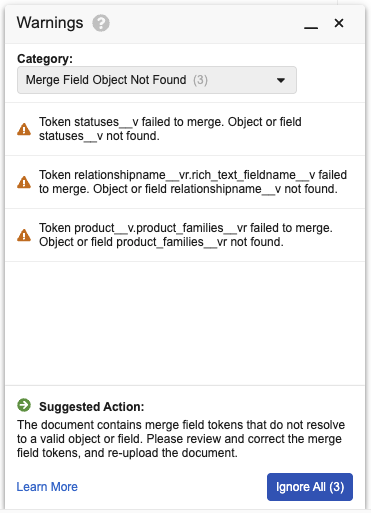
To resolve a warning, review and follow the guidance in the Suggested Action section of the **Warnings** dialog, and reupload the document if needed. See [Troubleshooting Renditions](/en/lr/48314/) for more information about warnings and their suggested actions. When you reupload the document, Vault re-renders the document and updates the content processing statuses and warnings in the Document Readiness panel. You can also select **Re-render Document** from the **All Actions** menu to manually initiate the rendition generation process without uploading a new document.
In some instances, you may want to acknowledge a warning without taking actions to resolve the source of the warning. In this case, you can click **Ignore Warnings** () next to the warning category in the Document Readiness panel, or click **Ignore All** in the **Warnings** dialog to ignore all warnings in the selected category. To restore previously ignored warnings and include them in the warning count, click **Restore** () next to the ignored warning category in the Document Readiness panel.
After you have resolved or ignored all warnings, the **Viewable** status in the Document Readiness panel is displayed as **Successful** (). When you restore a warning category, the **Viewable** status returns to **Completed with Warnings** ().
### Available Warnings {#available-warnings}
The table below includes the warning categories, warning text, and suggested actions that may be displayed in the Document Readiness panel.
| Category | Warning Text | Suggested Action |
| ---- | ---- | ---- |
| Unsupported File Format | Document is not a supported format and may not render as expected. | The document is not a supported format and may not render as expected. If any issues are encountered, please re-upload the document in a supported format. |
| Invalid Merge Field Token Detected | Token \[token name\] failed to merge due to invalid syntax. | The document contains merge field tokens with incorrect syntax. Please review and correct the merge field tokens, and re-upload the document. |
| Invalid Merge Field Token Detected | Token \[token name\] of value \[token value\] was incorrectly inserted in the document. | The document contains merge field tokens with incorrect syntax. Please review and correct the merge field tokens, and re-upload the document. |
| Maximum Merge Field Relationship Depth Exceeded | Token \[token name\] failed to merge. The current relationship depth of \[depth value\] exceeds the limit of \[depth limit\]. | The document contains merge field tokens that cannot be resolved because they exceed the maximum relationship depth. Please reduce the number of relationships in the affected tokens, and re-upload the document. |
| Merge Field Object Not Found | Token \[token name\] failed to merge. Object or field \[object or field name\]not found. | The document contains merge field tokens that do not resolve to a valid object or field. Please review and correct the merge field tokens, and re-upload the document. |
| Merge Field Clause Object Not Found | Token \[token name\] failed to merge. Object located in the token clause not found. | The document has invalid merge field tokens in the WHERE or ORDER BY clauses. Please correct the filter and re-upload the document. Only fields referenced in the primary statement can be used in the token filter, outside of tables. |
| Merge Field List Size Exceeded | Token \[token\_name\] failed to merge. Maximum number of total values \[number of values\] exceeded. | The document has merge field tokens that exceed the allowed number of values when resolved. Please remove the affected merge field tokens or add a filter clause to reduce the number of values, and re-upload the document. |
| Merge Field Table Row Limit Exceeded | The table with token \[token name\] could not be resolved. Too many rows were returned. | The document contains merge field tables that exceed the maximum row limit when resolved. Please remove the affected merge field tokens or add a filter clause to reduce the number of rows, and re-upload the document. |
| Unrelated Merge Fields in Table Row | Merge Field table includes the following fields with a relationship differing from the initial column: \[field\_name\] | When a table contains unrelated fields, identical values for the unrelated field will appear in all rows in list format. To correct this, please remove any fields that do not relate to the first field and re-upload the document. |
| Malformed Hyperlinks Detected | Document contains malformed hyperlinks. | The document has malformed hyperlinks. Please check that all URLs, email addresses, and phone numbers are correctly formatted and re-upload the document. |
| Invalid Image Sources | The image \[image\_name\] could not be found. | The document contains one or more invalid image sources. Please update or embed the image and re-upload the document. |
| Document Contains Macros | Document contains macros and may not render as expected. | Macros in the document were disabled during rendering. Please review to ensure all contents are complete and accurate. |
| Backslashes Converted to Yen Signs | Document contains encoding that displays backslash characters as yen signs. | Backslash characters are set to convert to yen signs. To undo this setting, open the document, go to **File > Options > Advanced > Layout Options**, uncheck **Convert backslash characters into yen signs**, and re-upload the document. |
## Completing Document Checks {#document-checks}
Document checks are document type-specific checklist items displayed in the Document Readiness panel to provide guidance for document reviews. Depending on your Vault's configuration, you may be required to complete these document checks before the document can transition to the next state in its lifecycle.
Document checks must be [configured by an Admin](/en/lr/8599601/#configure-document-checks).
The following example shows a _Clinical Checklist_ document check section with seven (7) outstanding document checks in the Document Readiness panel:
### Resolving and Ignoring Warnings
To resolve a warning, review and follow the guidance in the Suggested Action section of the **Warnings** dialog, and reupload the document if needed. See [Troubleshooting Renditions](/en/lr/48314/) for more information about warnings and their suggested actions. When you reupload the document, Vault re-renders the document and updates the content processing statuses and warnings in the Document Readiness panel. You can also select **Re-render Document** from the **All Actions** menu to manually initiate the rendition generation process without uploading a new document.
In some instances, you may want to acknowledge a warning without taking actions to resolve the source of the warning. In this case, you can click **Ignore Warnings** () next to the warning category in the Document Readiness panel, or click **Ignore All** in the **Warnings** dialog to ignore all warnings in the selected category. To restore previously ignored warnings and include them in the warning count, click **Restore** () next to the ignored warning category in the Document Readiness panel.
After you have resolved or ignored all warnings, the **Viewable** status in the Document Readiness panel is displayed as **Successful** (). When you restore a warning category, the **Viewable** status returns to **Completed with Warnings** ().
### Available Warnings {#available-warnings}
The table below includes the warning categories, warning text, and suggested actions that may be displayed in the Document Readiness panel.
| Category | Warning Text | Suggested Action |
| ---- | ---- | ---- |
| Unsupported File Format | Document is not a supported format and may not render as expected. | The document is not a supported format and may not render as expected. If any issues are encountered, please re-upload the document in a supported format. |
| Invalid Merge Field Token Detected | Token \[token name\] failed to merge due to invalid syntax. | The document contains merge field tokens with incorrect syntax. Please review and correct the merge field tokens, and re-upload the document. |
| Invalid Merge Field Token Detected | Token \[token name\] of value \[token value\] was incorrectly inserted in the document. | The document contains merge field tokens with incorrect syntax. Please review and correct the merge field tokens, and re-upload the document. |
| Maximum Merge Field Relationship Depth Exceeded | Token \[token name\] failed to merge. The current relationship depth of \[depth value\] exceeds the limit of \[depth limit\]. | The document contains merge field tokens that cannot be resolved because they exceed the maximum relationship depth. Please reduce the number of relationships in the affected tokens, and re-upload the document. |
| Merge Field Object Not Found | Token \[token name\] failed to merge. Object or field \[object or field name\]not found. | The document contains merge field tokens that do not resolve to a valid object or field. Please review and correct the merge field tokens, and re-upload the document. |
| Merge Field Clause Object Not Found | Token \[token name\] failed to merge. Object located in the token clause not found. | The document has invalid merge field tokens in the WHERE or ORDER BY clauses. Please correct the filter and re-upload the document. Only fields referenced in the primary statement can be used in the token filter, outside of tables. |
| Merge Field List Size Exceeded | Token \[token\_name\] failed to merge. Maximum number of total values \[number of values\] exceeded. | The document has merge field tokens that exceed the allowed number of values when resolved. Please remove the affected merge field tokens or add a filter clause to reduce the number of values, and re-upload the document. |
| Merge Field Table Row Limit Exceeded | The table with token \[token name\] could not be resolved. Too many rows were returned. | The document contains merge field tables that exceed the maximum row limit when resolved. Please remove the affected merge field tokens or add a filter clause to reduce the number of rows, and re-upload the document. |
| Unrelated Merge Fields in Table Row | Merge Field table includes the following fields with a relationship differing from the initial column: \[field\_name\] | When a table contains unrelated fields, identical values for the unrelated field will appear in all rows in list format. To correct this, please remove any fields that do not relate to the first field and re-upload the document. |
| Malformed Hyperlinks Detected | Document contains malformed hyperlinks. | The document has malformed hyperlinks. Please check that all URLs, email addresses, and phone numbers are correctly formatted and re-upload the document. |
| Invalid Image Sources | The image \[image\_name\] could not be found. | The document contains one or more invalid image sources. Please update or embed the image and re-upload the document. |
| Document Contains Macros | Document contains macros and may not render as expected. | Macros in the document were disabled during rendering. Please review to ensure all contents are complete and accurate. |
| Backslashes Converted to Yen Signs | Document contains encoding that displays backslash characters as yen signs. | Backslash characters are set to convert to yen signs. To undo this setting, open the document, go to **File > Options > Advanced > Layout Options**, uncheck **Convert backslash characters into yen signs**, and re-upload the document. |
## Completing Document Checks {#document-checks}
Document checks are document type-specific checklist items displayed in the Document Readiness panel to provide guidance for document reviews. Depending on your Vault's configuration, you may be required to complete these document checks before the document can transition to the next state in its lifecycle.
Document checks must be [configured by an Admin](/en/lr/8599601/#configure-document-checks).
The following example shows a _Clinical Checklist_ document check section with seven (7) outstanding document checks in the Document Readiness panel:
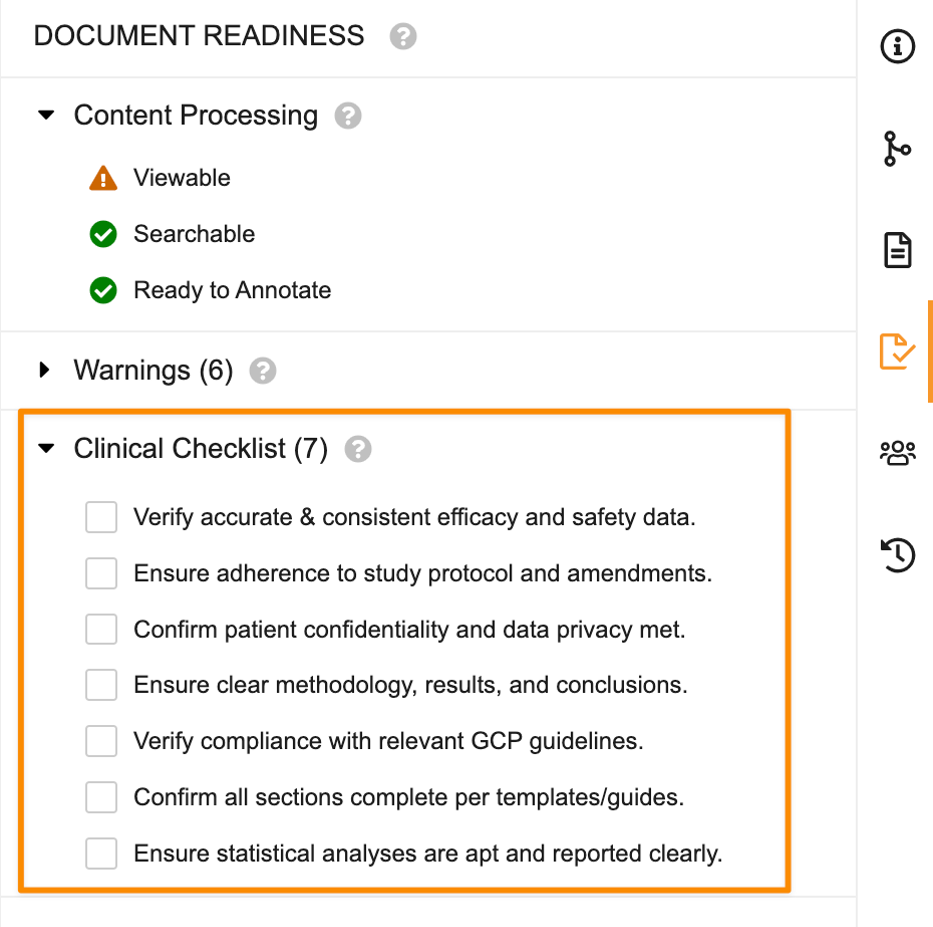 To view more information about the document check section, hover over the question mark () in the section heading in the Document Readiness panel. To view more information about a specific document check, hover over the document check text to display a tooltip with more information, if available.
To complete a document check, perform the action or review indicated by the document check text and select its checkbox. As you complete each document check, the document check count in the section heading is updated to indicate the number of outstanding document checks. You can also clear a selected checkbox to indicate that the check is not yet complete.
## Reporting on Document Readiness Metrics
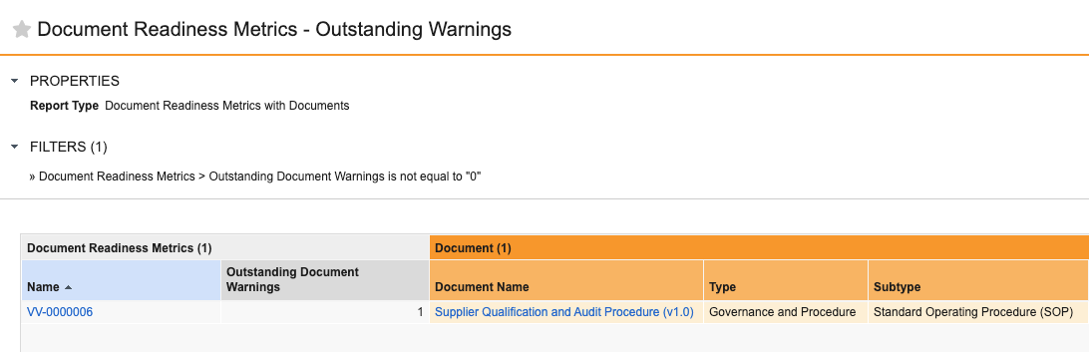
You can view _Document Readiness Metrics_ reports that display documents with outstanding document warnings and document checks. To create a report for outstanding warnings and checks, an Admin must first [create the necessary report type](/en/lr/8599601/#document-readiness-report).
The following example _Document Readiness Metrics_ report displays documents with outstanding document warnings and the number of warnings:
To view more information about the document check section, hover over the question mark () in the section heading in the Document Readiness panel. To view more information about a specific document check, hover over the document check text to display a tooltip with more information, if available.
To complete a document check, perform the action or review indicated by the document check text and select its checkbox. As you complete each document check, the document check count in the section heading is updated to indicate the number of outstanding document checks. You can also clear a selected checkbox to indicate that the check is not yet complete.
## Reporting on Document Readiness Metrics
You can view _Document Readiness Metrics_ reports that display documents with outstanding document warnings and document checks. To create a report for outstanding warnings and checks, an Admin must first [create the necessary report type](/en/lr/8599601/#document-readiness-report).
The following example _Document Readiness Metrics_ report displays documents with outstanding document warnings and the number of warnings:
 ## Permissions {#permissions}
To access the Document Readiness panel for a document, users must have _Edit_ permission for the lifecycle state of the latest document version.
[1]: #content-processing-status
[2]: #warnings
[3]: #permissions
[4]: #document-checks
[5]: #available-warnings
## Permissions {#permissions}
To access the Document Readiness panel for a document, users must have _Edit_ permission for the lifecycle state of the latest document version.
[1]: #content-processing-status
[2]: #warnings
[3]: #permissions
[4]: #document-checks
[5]: #available-warnings