Veeva Publications is an application within the Veeva Medical suite designed to streamline the planning, authoring, review, approval, and submission of scientific literature to medical journals and congresses.
With Veeva Publications, publication managers can create and manage Publication Plans at the project level, with Project records for managers to control and monitor associated Work Items and Work Item Tasks assigned to individual project contributors. Publication managers also send Publication documents to project contributors for review and approval via Collaborative Authoring.
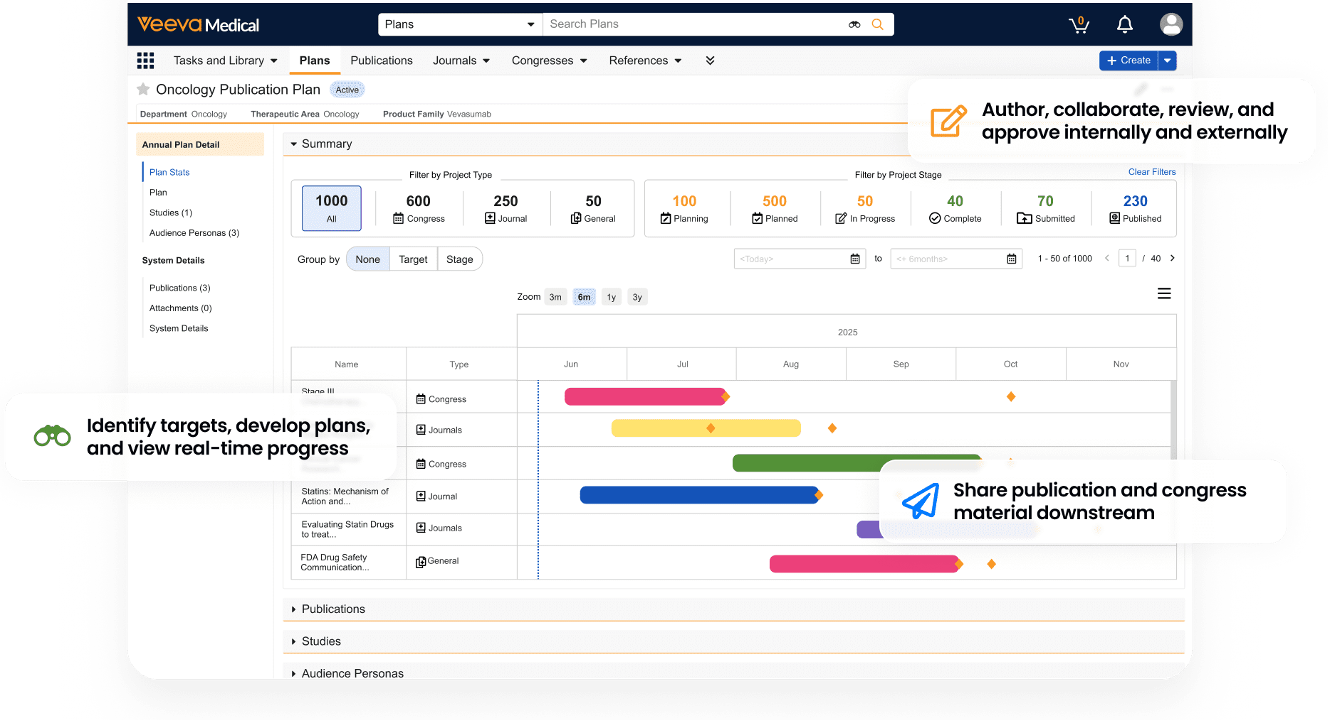
Creating a Plan in Publications
You can define and manage Publication Plans for attributes like a Therapeutic Area, an Indication, or a Product, or you can establish an annual Publication Plan for something that needs to be monitored on a yearly basis, such as annual budget planning.
To create a Publication Plan:
- Select +Create in the All Plans view.
- In the Create Publication Plan dialog, enter a Name for the plan, and select an attribute such as a Therapeutic Area from the picklist.
- Enter a Plan Description.
- Select a Start Date and End Date.
- Click Save.
Managing Plans in Publications
You can review a visualization of your Publication Plan via the Summary application section on the record detail page. This dashboard allows you to manage key activities and address plans in a timely manner. You can filter plans by type (Congress, Journal, or General Publication), stage (Planning, Planned, In Progress, Complete, or Submitted), or a date range. You can also group plans by target or stage.
Creating a Project in Publications
From the Publication Plan record detail page, you can view the associated publications that are planned or have been completed or published, along with the products being featured in the publications and the studies used to substantiate the data. You can also create a Project record manually or using a preconfigured template for a single publication to manage the publication process from planning to submission.
To create a Project record for a publication:
- Select +Create under the Projects application section.
- In the Create Project dialog, select a project type and then select Continue. Select Congress Submission to submit the publication to a congress, Journal Submission to submit the publication to a journal, or General Publication.
- Fill in the publication project details. Enter a Publication Short Name, Project Owner, and Publication Type for the project.
- Select the related Reference record for the Target or Target Event, such as a Journal for a Journal Submission.
- Click Save.
To create a Project record using a template:
- Select +Create under the Projects application section.
- In the Create Project dialog, select a project type and then select Continue.
- Select a Project Template from the picklist.
- Select a Baseline Reference from the picklist, such as the Start Date, End Date, Submission Date, or Publication Date.
- Enter a date and time (or click Now) for the Baseline Reference Date.
- Click Save.
Once you move the Project to a Planned state, Vault automatically populates the other Baseline Dates on the record based on preconfigured date offsets and durations defined in the selected template. Vault also automatically creates Work Items for the Project. You can edit or delete these Work Items as needed or create additional Work Items.
To create a Project record via deep copy:
- Select Copy Record from the All Actions menu. Vault opens a new Project record with metadata populated from the source Project.
- Select Yes or No for the Resubmission field to indicate whether the project represents a journal resubmission.
- Select a new Template Category and Project Template.
- Select a Baseline Reference from the picklist, such as the Start Date, End Date, Submission Date, or Publication Date.
- Enter a date and time (or click Now) for the Baseline Reference Date.
- Optional: Edit the metadata.
- Click Save.
Once the record is saved, Vault generates the new Project record with all related records and documents copied from the previous Project. Vault also generates a related Project record in the Related Projects section of the source Project for the new Project record.
Managing Projects in Publications
Once a Project record is created, you can assign one or more Work Items under the project that represent its individual parts and associated tasks. You can control, monitor, and assign these Work Items and Work Item Tasks to project contributors at the project level. When configured by an Admin, you can also manage the Work Item workflows by type (Milestone or Workstream) and initiate the workflow from the Work Items application section on the Project record detail page.
You can review the status of assigned Work Items and any nested Work Item Tasks as rows of the Project Summary application section. The Project Summary application section displays the Milestones and Workstreams related to the project along with a status bar indicating the percentage of completeness of Work Item Tasks under that Work Item. If an item or task is overdue, the status bar is displayed in red with an Overdue indicator.
You can zoom the chart by three months (3m), six months (6m), one year (1y), or All, and the date range start date is today’s date. You can also hover your cursor over a Workstream or Milestone to display a Work Item hovercard that includes project status details, a link to the Work Item record detail page, the current lifecycle state, and Due Soon or Overdue indicator for items that need to be addressed quickly.
Collaborating in Publications
To start the Collaborative Authoring process for your publication, start an authoring workflow or initiate a collaborative authoring session on the desired document. Collaborative authoring connects Vault to Microsoft 365 to allow multiple users to edit a document at the same time using the Microsoft 365 desktop software or browser apps.
When the Project record moves to Authoring, publication managers can kick off the Send to Author(s) workflow, which automatically checks out the document to Microsoft 365 and enables internal and external collaborators to access and contribute to the Publication document. Any contributions from external collaborators who do not use collaborative authoring are uploaded to Vault as Attachments for historical reference and audit tracking.
Once all of the input from the collaborators is collated and uploaded in Vault, you can move the Publication document to Review and Approval states where publication managers can initiate Send for Review and Send for Approval workflows to send the document to the appropriate resources for review and approval.
Creating Publication References in Publications
With the PubMed integration, you can search for scientific literature from PubMed directly from Vault and automatically save the associated metadata in a Publication Reference record. You can search using an article’s Digital Object Identifier (DOI) or PubMed ID (PMID).
To create a Publication Reference record:
- From the Project record detail page, select Publication References.
- Click Create.
- From the References Import section, search for and select scientific literature to import from PubMed using either the DOI or PMID, and click Search.
- Once Vault automatically populates the record with the PubMed metadata and the related Publication Plan, click Save.
Vault then creates a Publication Reference record with the PubMed article title, PMID, and DOI populated and links to the Reference, Publication Plan, and Project records. You can click the Reference link and update the Reference record with additional Reference documents. Vault also creates or matches related records for Author, Journal, and Journal Issue when relevant.
Limitations
- Users cannot change the parent or the populated plan once a Project is created.
- Users cannot create a Milestone as a child item of a Workstream.
- Users cannot create a child Work Item for a Milestone.
- Users cannot change the object type for a Work Item.
- Users cannot change a Project template once Work Items are automatically created.